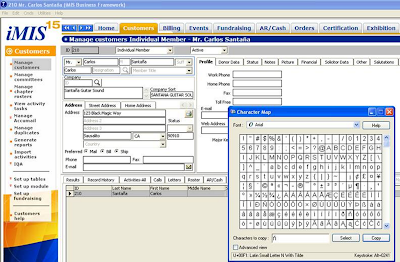
To insert special foreign language characters …
Character Map
Locate the desired character
Click ‘Select’
Click ‘Copy’
Then paste (Ctrl+V or Edit>Paste) the special character into the necessary field position.Note: The alternate keystroke entry option of the Alt key + number sequence for special character entry.
Note: On my Dell D630laptop I do not have a dedicated 10-key number pad…to use the ALT+0241 keystroke command to insert the “ñ”.
For example I have to turn on the ‘number lock’ then holding down the ‘Fn’ key and the ‘Alt’ key simultaneously enter the numbers 0-2-4-1 on the letter keys (m-k-u-j) that also serve as an embedded 10-key number pad…the standard laptop number/symbol keys DO NOT WORK…going to the Character map and copying the special character is easier…each laptop is independently owned and operated..actual mileage may vary…see participating McDonalds for availability in your area…
Character Map Overview
You can use Character Map to view the characters that are available in a selected font. Character Map displays the following character sets: Windows, DOS, and Unicode. You can copy individual characters or a group of characters to the Clipboard and paste them into any program that can display them. Or, depending on the program you are using (such as WordPad), you can even copy characters by dragging them from Character Map directly into an open document.Using Character Map, you can search for characters by Unicode character name or Unicode subgroup (such as arrows or mathematical operators) or by other special classifications.
You can also use Character Map to view and copy private characters that you have created using Private Character Editor. If you know the Unicode equivalent of the character you want to insert, you can also insert a special character directly into a document without using Character Map. To do so, open the document and position the insertion point where you want the special character to appear. Then, with NUM LOCK on, hold down the ALT key while using the number pad keys to type the Unicode character value.
International characters
Environment: WIN_SQLSERVE:Version: 4.29.17.02Module:SYSTEM
Description: Can iMIS support International (foreign language) characters?
A. iMIS supports International characters like ñ. ç, é, è, ò, etc. These characters are supported via the font and inserted by keystroke combinations. To determine what keystrokes will insert a specific character, go to Start>>Programs>>Accessories>>Character Map.
Keywords: foreign characters French letters
 From the iMIS 15-iSA tab (accessible to iMIS system administrators) click the 'User Defined Tables' item on the left nav menu....
 then click the 'Build All' button
 Your user Defined tables should then appear as business objects available for use in iQA queries.


 Posts
Posts

